

A cache is a temporary storage location, which allows the reuse of previously processed (recently accessed) data.
Caching is a process in which a copy of files that are going to be used frequently are stored in a temporary storage location, so that they can be accessed more quickly later.
Telegram cache
This is because files such as photos and videos are exchanged a lot in Telegram, so in a short period of time, a huge amount of files accumulates in the cache of this application.
Therefore, it is better to always clear or delete Telegram's cache at certain time intervals.
The Telegram program offers an option called Clear Cache in its settings menu, which you can use to delete the Telegram cache without the need for any other special action.
In this article, we are going to teach you how to clear the Telegram cache from the program itself using the Clear Cache option.
To delete or remove Telegram cache through this program, follow the following steps in order:
Run the Telegram program.
Tap ☰ in the upper left corner of the screen to display the Telegram main menu.
Select the Settings option.
Tap the Data & Storage option.
Select the Storage Usage option.
specify the type of files you want to delete
Tap the CLEAR CACHE option.
Tap the CLEAR CACHE option again.
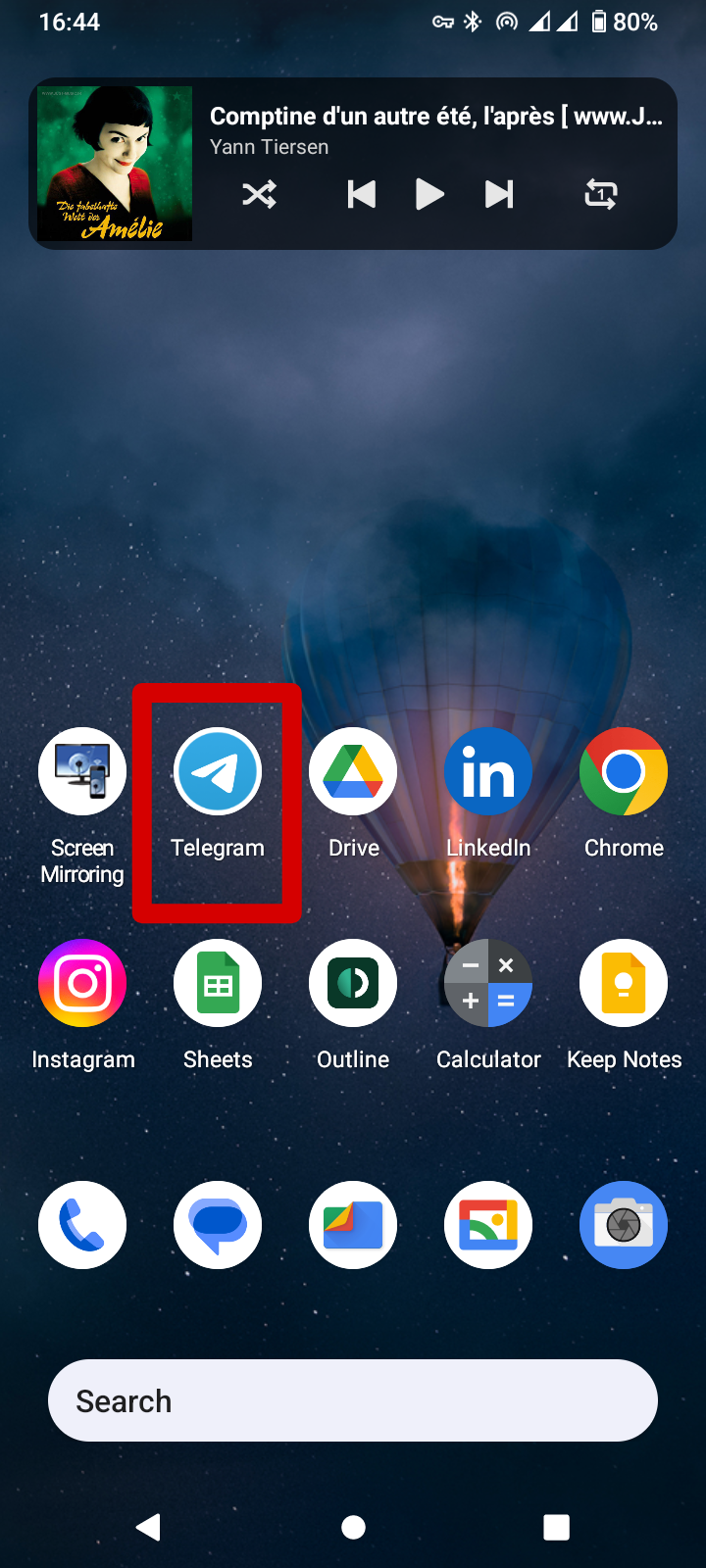
Sep1: Tap Telegram app.
If you have already installed the Telegram program on your mobile phone, open it. Otherwise, you can download and install this software from Google Play or other markets.
Step2: Tap ☰ in the upper left corner of the screen to display the Telegram main menu.

Step3: Select the Settings option.

Step4: Tap the Data & Storage option.
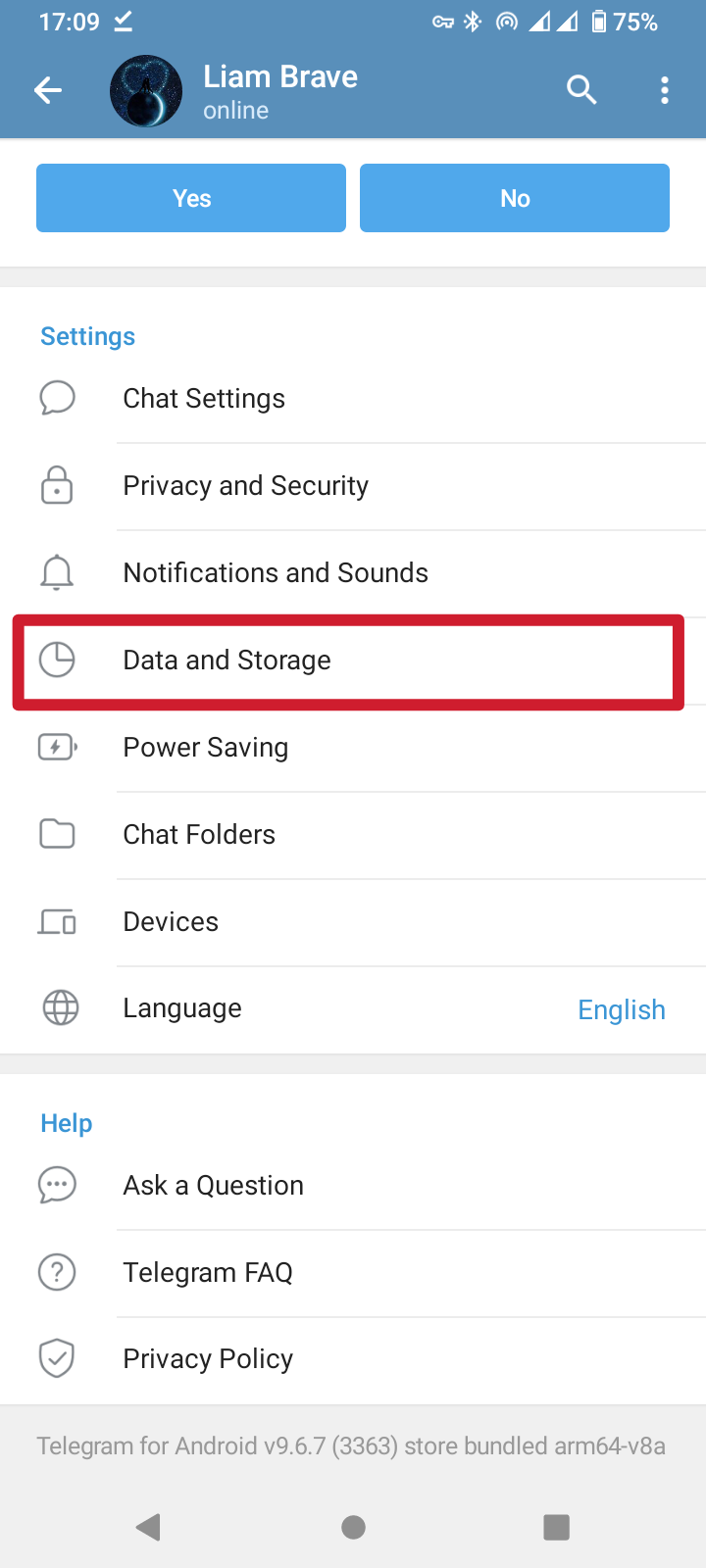
Step5: Select the Storage Usage option.
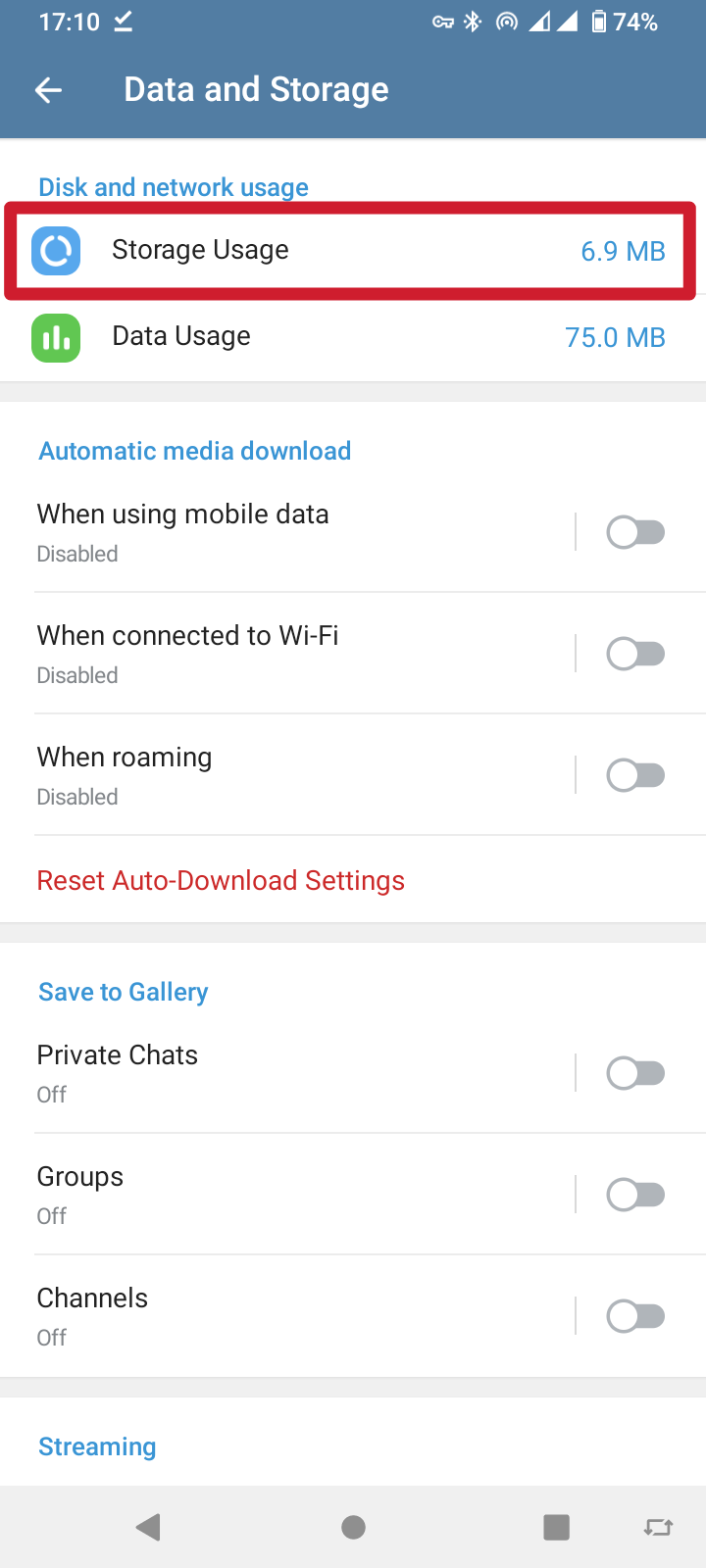
Step6: From the provided drop-down menu, specify the type of files you want to delete from the cache. For example, you can delete all the other files stored in Telegram's cache by unchecking the Photos option. So select the options you want from the drop down menu.
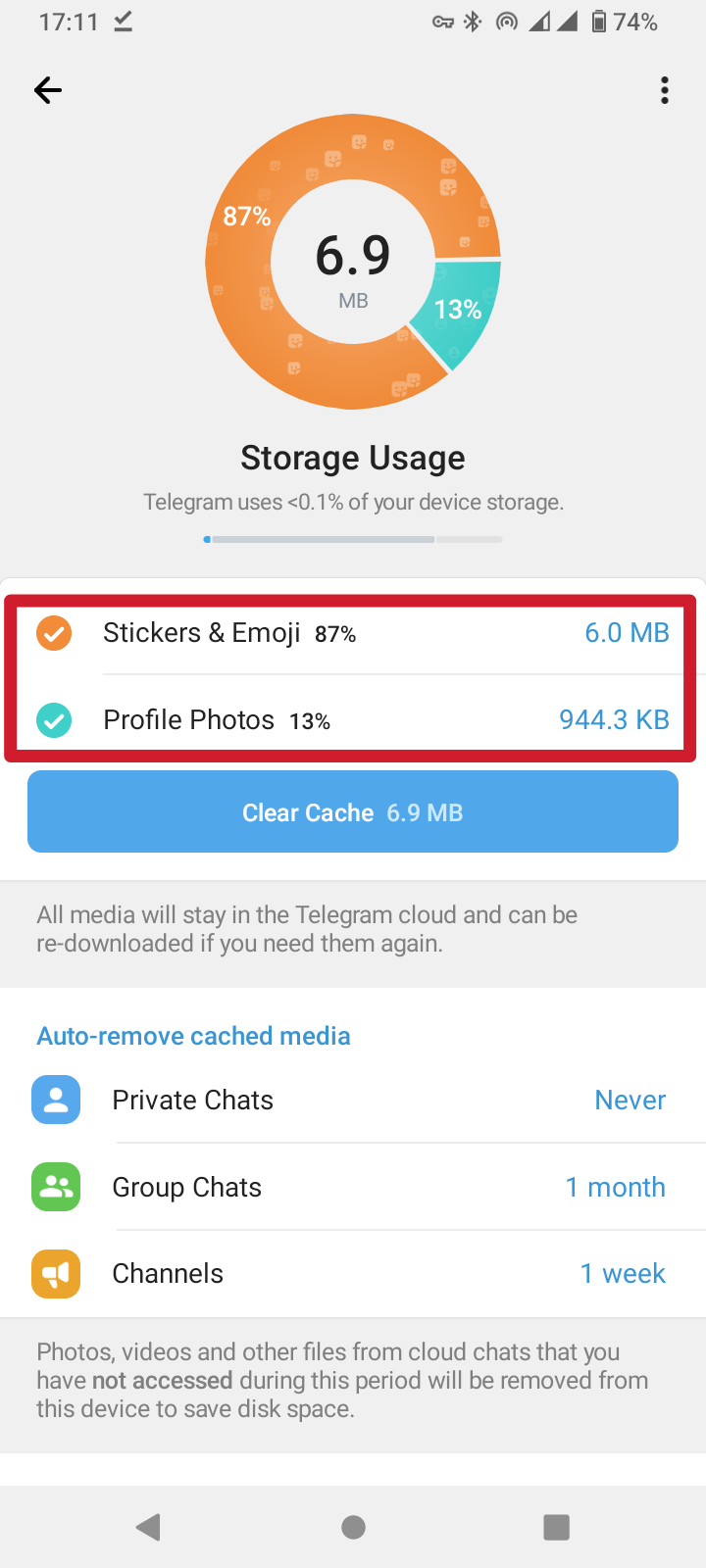
Step7: Tap the CLEAR CACHE option.
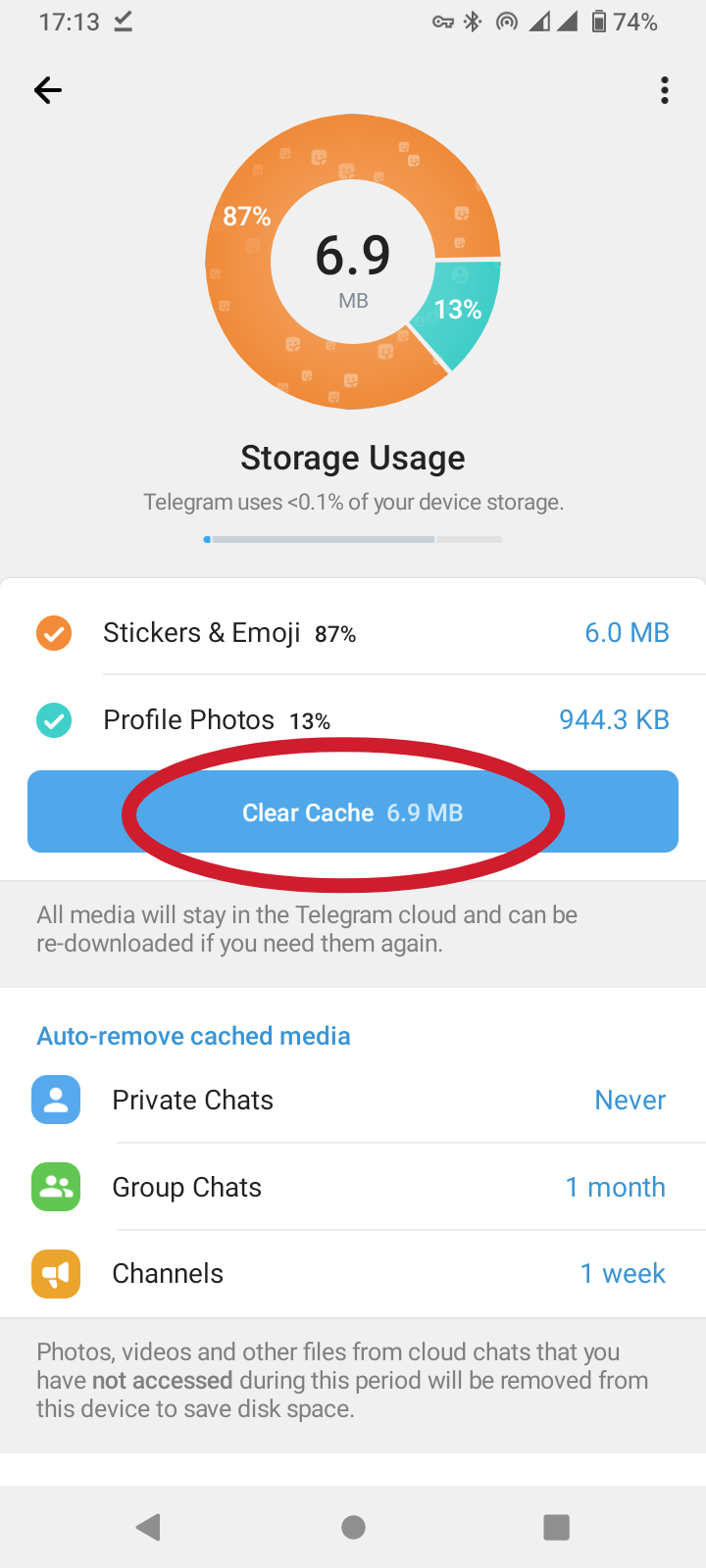
Step8: Tap the CLEAR CACHE option again.
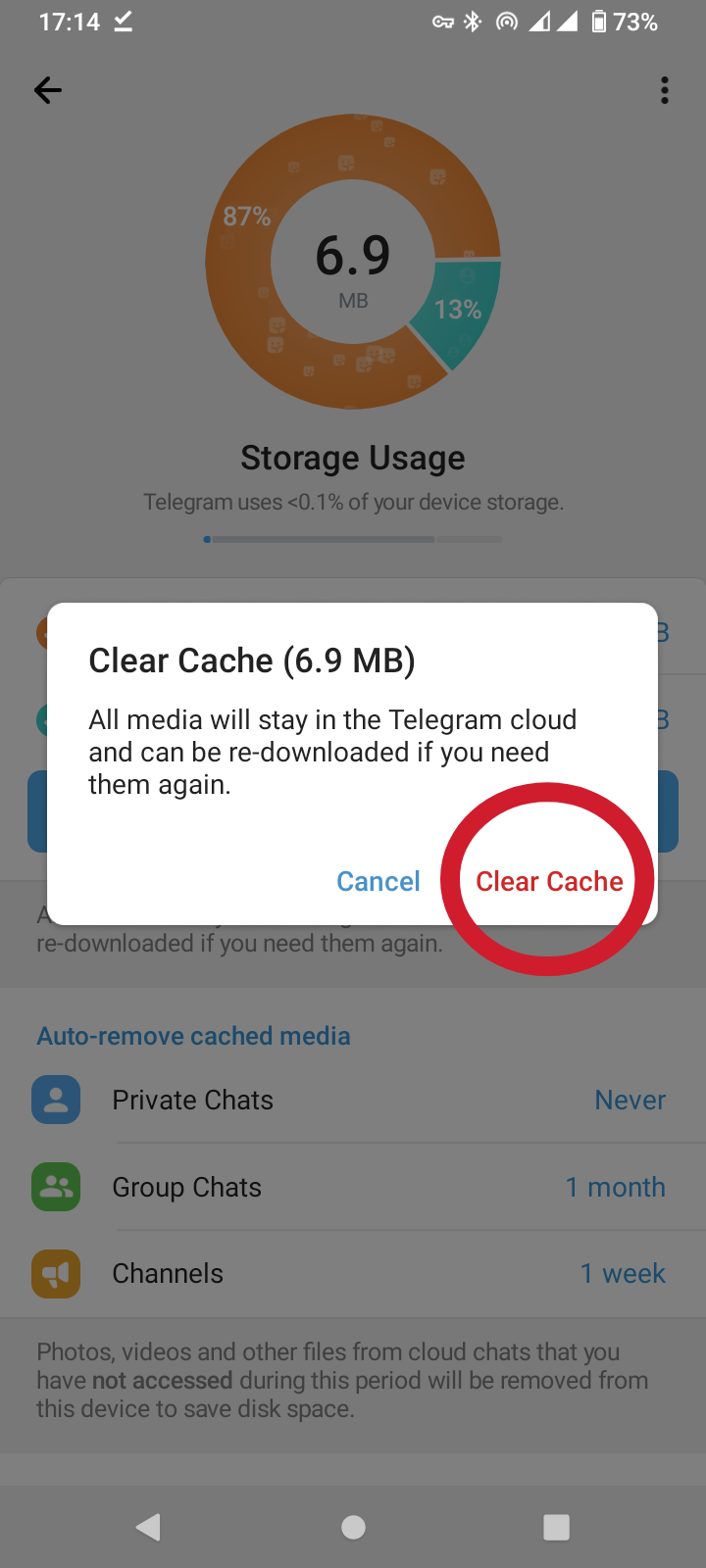
Step9: Done! You cleared your Telegram cache successfully.
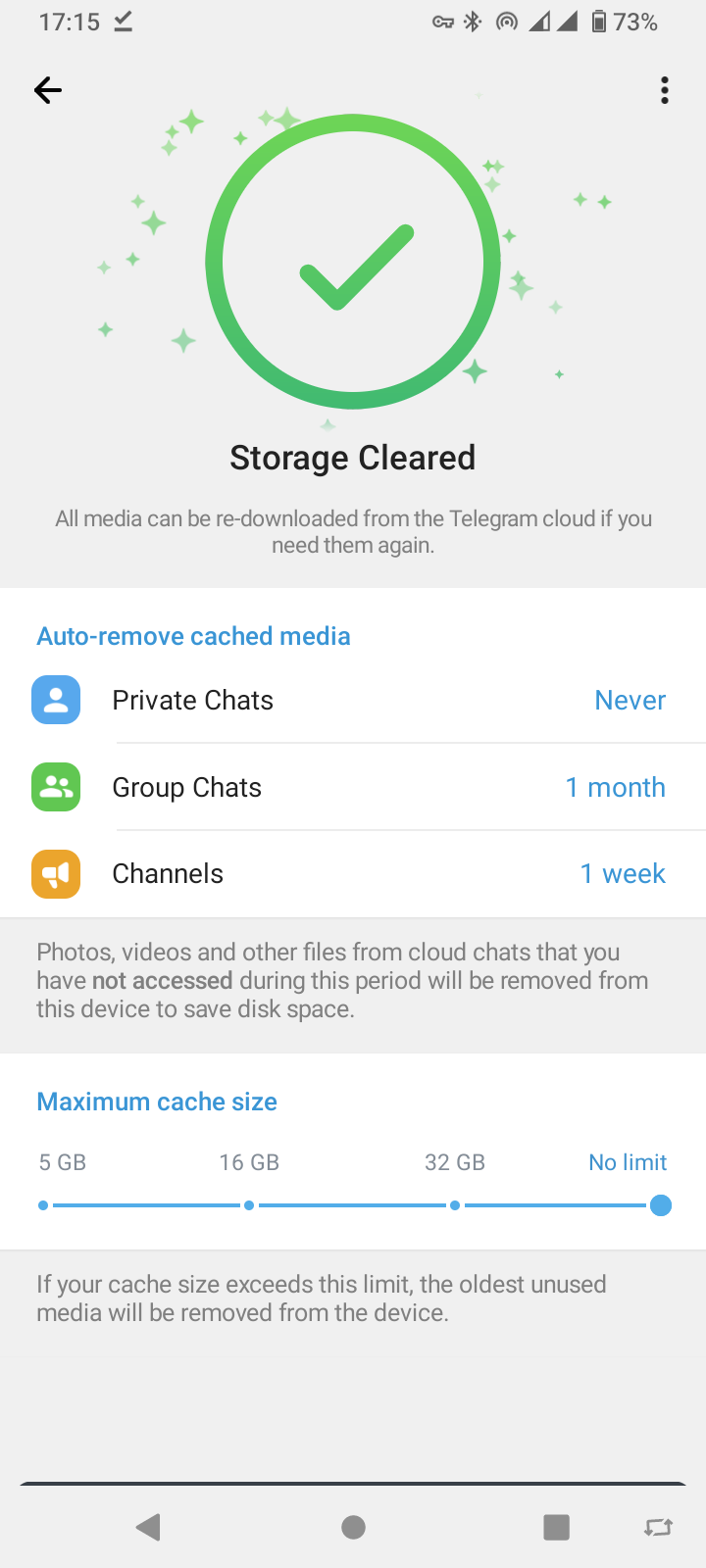
In this simple way, the Telegram cache can be cleared through the settings menu of this messenger program.
In this article, we have provided you with a step-by-step guide to clear Telegram cache. You may need to do this every once in a while to increase the speed of your mobile phone or to increase the free space of your phone.
If you have any questions about the above article, you can leave a comment.

