
PDFs are a widely used file format for digital documents, but they can be inconvenient when they need to be oriented correctly. For instance, when a PDF is created from a scanned document, the orientation of the reviewed page may not be correct, resulting in a PDF that appears upside down or sideways. In addition, if you view a PDF on a device with a different screen orientation than the original document may be difficult to read or navigate. Rotating PDFs files can solve these problems and make them easier to read, share, and print. Doing it ensures that the document is displayed in the correct orientation, making it simpler to understand and manage. Rotating PDF pages can also help make the document more visually appealing, as upside-down or sideways pages can be distracting and difficult to read. Furthermore, it can be essential when editing or filling out forms. Now you know clearly why you need to rotate and edit the PDF files when using them. Also, we talked about the GoodReader Pro program that will help you in this case. It is time to learn how to do it to continue. Are you ready? Let’s go!
Rotating a PDF in GoodReader Pro is a simple process that can be completed in just a few steps. Below is the step-by-step guide to help you rotate your PDFs:
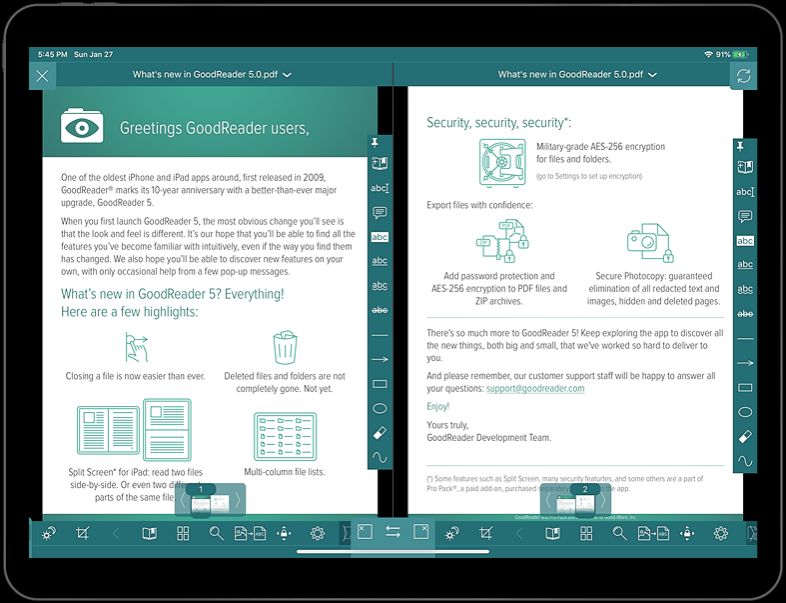
First, open the GoodReader Pro app and select the PDF you want to rotate from your file library or storage location. Once you have selected the file, it will open in the GoodReader Pro viewer.
Next, tap on the screen to bring up the menu bar at the bottom of the screen. Select the “Rotate” tool from the menu bar, represented by an arrow circling a dot.
Once you have accessed the Rotate tool, you can select the desired rotation angle for your PDF. You can choose to rotate the PDF 90 degrees to the left or right, or you can rotate it 180 degrees to flip it upside down.
After selecting the desired rotation angle, tap the “Save” button to save the changes you made to your PDF. GoodReader Pro will automatically save the rotated PDF as a new file, leaving the original PDF unaltered. That’s it! Your PDF is now rotated and ready to use. This simple process can make a big difference in the readability and usability of your PDFs. As you learn, the steps are easy, and you can do them as soon as possible. To continue, we want to point out some essential tips that you need to pay attention to rotate PDF with GoodReader Pro.

